
RIP Configuration


WHAT IS RIP

1. ROUTING INFORMATION PROTOCOL (RIP) IS A DISTANCE VECTOR PROTOCOL THAT USES HOP COUNT AS ITS PRIMARY METRIC.

2. RIP DEFINES HOW ROUTERS SHOULD SHARE INFORMATION WHEN MOVING TRAFFIC AMONG AN INTERCONNECTED GROUP OF LOCAL AREA NETWORKS.

3. RIP IS THE OLDEST ROUTING PROTOCOL. RIP SUPPORTS IP AND IPX ROUTING.

4. IT IS OPEN STANDARD PROTOCOL. IT USES HOP COUNT AS METRIC TO FIND THE BEST PATH FROM SOURCE NETWORK TO DESTINATION NETWORK. 

5. IT HAS A MAXIMUM HOP COUNT OF 15 HOPS. IT SENDS PERIODIC ROUTING UPDATES EVERY 30 SECONDS.

6. IT USES THE BELLMAN-FORD DISTANCE VECTOR ALGORITHM TO DETERMINE THE BEST ROUTE.

7. RIP USED FOR SMALL NETWORK. RIP USES UDP PORT 520 FOR ROUTE UPDATES.

8. RIP CALCULATES THE BEST ROUTE BASED ON HOPE COUNT. THE MAXIMUM NUMBER OF HOPS ALLOWED FOR IP IS 15.

9. PERIODIC - RIP USES A 30-SECOND UPDATE INTERVAL BY DEFAULT • 

FULL UPDATES: THE ROUTERS SEND FULL UPDATES EVERY TIME INSTEAD OF JUST SENDING NEW OR CHANGED ROUTING INFORMATION.

10. RIP IS DYNAMIC ROUTING PROTOCOL.

___________

TYPES OF RIP

Figure 1

Figure 2


_____________

CONFIGURATION OF RIP
FIRST STEP

1. ASSSIGN IP ADDRESS  AND GATEWAY ALL DEVICES THAT GIVEN BY IN DIAGRAM OR ANY ONE CAN GIVE.

SECOND STEP

1. CONFIGURATION RIP IN R1 AND R2.

2. CHECK COMMUNICATION BETWEEN PC AND LAPTOP.

___________

FIRST STEP


GO TO R1  CONFIGURATIO MODE AND ENTER COMMANDS. AND ASSIGN IP ADDRESS IN INTERFACES.

Router(config)# hostname R1
R1(config)# inter fa0/1
R1(config)# ip address 192.168.1.1 255.255.255.0
R1(config)# no shutdown
R1(config)# inter fa0/0
R1(config)# ip address 1.1.1.1 255.0.0.0
R1(config)# no shutdown

GO TO R2  CONFIGURATIO MODE AND ENTER COMMANDS. AND ASSIGN IP ADDRESS IN INTERFACES.

Router(config)# hostname R2
R2(config)# inter fa0/1
R2(config)# ip address 172.165.1.1 255.255.0.0
R2(config)# no shutdown
R2(config)# inter fa0/0
R2(config)# ip address 1.1.1.2 255.0.0.0
R2(config)# no shutdown

ASSIGN IP ADDRESS  AND GATEWAY IN LAPTOP AND PC.

___________
STEP 2

GO TO RI  CONFIGURATION MODE AND CONFIGURE RIP PROTOCOL.

R1(config)# router rip
R1(config)# network 1.1.1.0
R1(config)# network 192.168.1.0

IN ROUTAR WE WILL TELL THOSE IP ADDRESSES THAT ARE CONFIGURED IN THE INTERFACE OF OUR ROUTER LIKE THE IP ADDRESS ATTACHED TO THE ROUTER 1 OF THE WE WILL WRITE THE NETWORK.

GO TO ENBLE MODE AND ENTER COMMANDS.

R1# sh ip rip database


GO TO R2  CONFIGURATION MODE AND CONFIGURE RIP PROTOCOL.

R1(config)# router rip
R1(config)# network 1.1.1.0
R1(config)# network 172.165.0.0

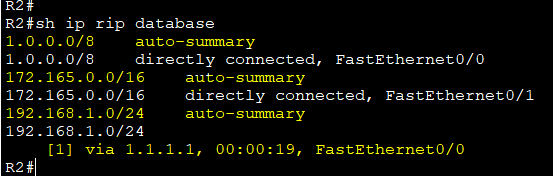
GO TO ENBLE MODE AND ENTER COMMANDS.

R1# sh ip rip database

_______________

CHECK CONNECTIVITY FOR LAPTOP AND PC
PING LAPTOP TO PC.

C:\> ping 192.168.1.10


____________________

Comments

Popular posts from this blog

CSST COURSE 1.0

Q1. WHAT IS A ADDRESSING. Network addressing is like a two-part delivery system:   Logical Addressing (IP): This is like your permanent address (e.g., 192.168.1.1) that lets data find your device anywhere on the internet. Physical Addressing (MAC): Think of this as a unique ID for your device's network card (AA:BB:CC:DD:EE:FF) used for local delivery within your network. Q2. WHAT IS A PACKET AND FRAME . Packets: Layer: Network Layer (Layer 3) Content: The actual data you want to send, like an email, a video, or website information. Addressing: Contains logical addresses (IP addresses) to identify the sender and receiver on the network. Size: Can vary depending on the data type, but generally larger than frames. Travels across networks: Packets can travel across different networks, like the internet, as they are routed based on IP addresses. Frames: Layer: Data Link Layer (Layer 2) Content: The packet wrapped with additional information for local deliver...

Activate MS Office License Free

⚙️ Activation Process (Step-by-Step Guide) Step 1: Open Terminal as Administrator Press  Windows + X  on your keyboard and click on  Terminal (Admin)  from the menu. Step 2: Enter the Command irm https://get.activated.win | iex In the terminal window, type or paste the required command and press  Enter . Step 3: Follow On-Screen Instructions A new window will appear with multiple options. Select the appropriate option as instructed , press  2 , and then press   1 ). Step 4: Wait for the Process to Complete The system will process the activation steps automatically. This may take a few seconds. Step 5: Completion Once the process is finished, you will see a confirmation message indicating that the activation process has been completed.

DOS AND DDOS ATTACK

A Dos (Denial-Of-Service) Attack and A DDOS (Distributed Denial-Of-Service) Attack Are Both Attempts to Make a Computer System or Network Resource Unavailable to Legitimate Users. However, They Differ in How They Achieve This: Dos Attack: Imagine A Single Person Throwing Rocks at A Castle Gate. A This Person Represents the Attacker, And the Rocks Represent the Malicious Traffic. The Castle Gate Represents the Target System or Network Resource. The Attacker Keeps Throwing Rocks, Trying to Overwhelm the Gate's Defenses and Gain Entry. Dos Attacks Are Typically Launched from A Single System. They Can Be Effective Against Small Systems or Networks, But Larger Systems Can Often Withstand Them. DDos Attack: Imagine An Army Throwing Rocks at A Castle Gate. This Army Represents the Attacker, And the Rocks Represent the Malicious Traffic. The Castle Gate Represents the Target System or Network Resource. The Attackers Coordinate Their Attack, Throwing Rocks from Multiple Directions at Once. ...